July 7, 2026
How to Search Twitter Bookmarks by Date and Type
Search Twitter bookmarks by date, media type, post type, author, and old-first order so you can find saved tweets without endless scrolling.

Finding an old Twitter bookmark should not feel like archaeology. You remember saving the post. You may remember the month, the author, or that it had a video. But X’s native bookmark view still pushes you toward scrolling from newest to oldest and hoping you recognize the item when it passes by.
That is not search. That is manual recovery.
This guide shows how to search Twitter bookmarks by date and type with Twillot, including date ranges, quick presets, media filters, post type filters, author filters, old-first review, and one-click reset.
Why native Twitter bookmark search is not enough
X bookmarks were designed as a save-for-later list, not as a serious archive. Once you have hundreds or thousands of saved posts, the default interface creates several problems:
- No reliable way to combine date, author, and media filters.
- No easy way to isolate images, videos, GIFs, or article links.
- No old-first review mode for cleaning historical saves.
- No clear visual state showing that filters are active.
- Too much dependence on infinite scroll.
If your bookmarks are part of your research process, this slows everything down.
Start with a full sync
Before searching deeply, sync your bookmarks into Twillot. A full sync gives Twillot a local index to work with, which makes filtering and review more practical than repeatedly asking X for more pages.
For day-to-day use, incremental sync can pick up new saves. For a first cleanup or export, start with full sync.
Search by date range
Date range filtering is the fastest way to narrow a large bookmark archive.
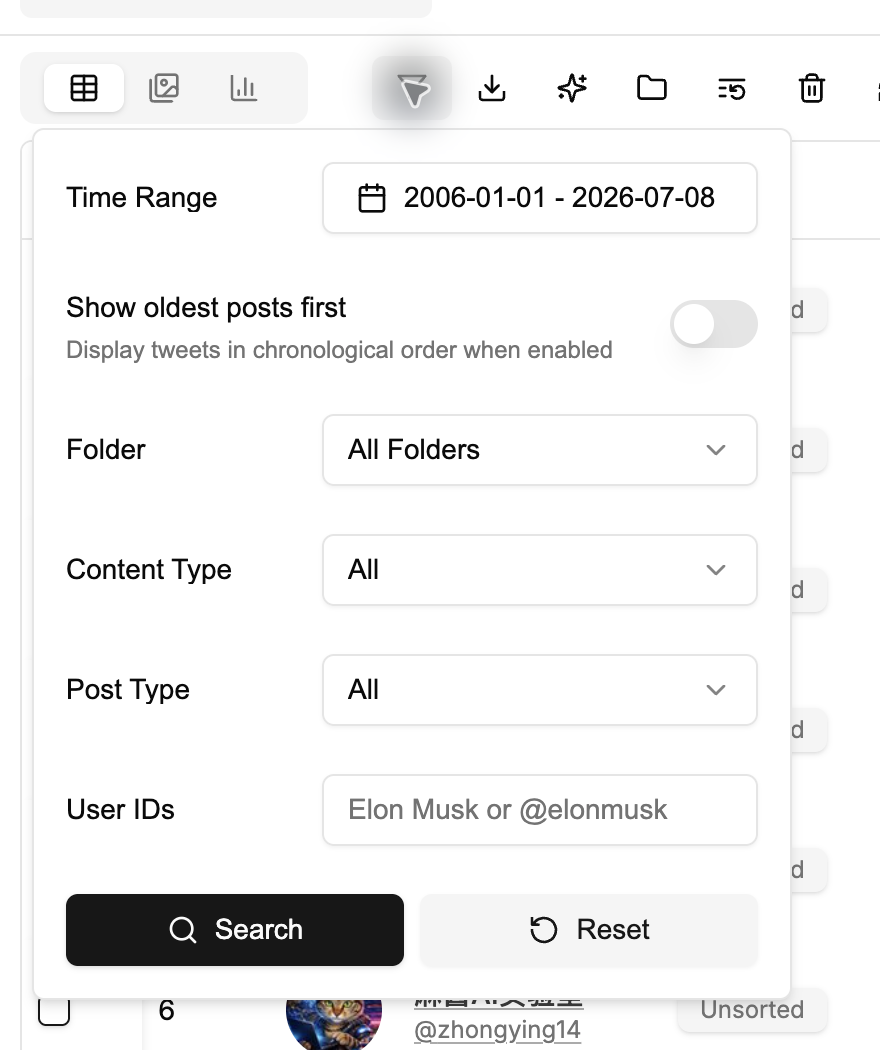
Use it when you remember:
- The week you saved a launch announcement.
- The month you collected competitor research.
- The year you bookmarked a thread.
- The period before or after a product release.
Twillot supports direct date selection and quick ranges such as this week, this month, last week, and last month. The date selector is designed to stay inside the valid bookmark history range, so you do not waste time filtering before the earliest available tweet year.
Filter by content type
Content type filters help when you remember the shape of a post but not the exact words.
Common examples:
- Images for design references.
- Videos for demos.
- GIFs for examples or reactions.
- Articles and links for reading lists.
Instead of scrolling through every saved text post, filter to the content type that matches your memory.
Filter by post type
Post type is different from content type. It describes how the post exists in the conversation.
Twillot can help separate:
- Original posts.
- Replies.
- Reposts.
- Quote posts.
This matters because the same keyword can appear in different contexts. If you are looking for original analysis, filter away replies and reposts. If you are auditing conversations, include replies.
Filter by author
Sometimes the author is the strongest clue. Twillot supports author filtering through user IDs, which is useful when you know who posted the item or when you want to review everything you saved from one account.
Author filters are especially useful for:
- Tracking competitors.
- Reviewing saved posts from customers.
- Finding technical threads from a specific engineer.
- Collecting creator research from one account.
Review old bookmarks first
Most bookmark tools start with the newest item. That is fine for recent saves, but it is painful when your goal is cleanup.
Old-first review helps when you want to:
- Find early saved posts.
- Remove stale references.
- Organize the oldest unsorted items first.
- Audit whether your bookmark archive still reflects your current interests.
In Twillot, the old-first switch changes the review direction so you can work from the earliest saved items instead of repeatedly starting at the top.
Know when filters are active
A good search interface should make state visible. When filters are active, Twillot shows visual feedback so you do not forget that the current list is filtered.
This prevents a common mistake: thinking items are missing when the real issue is that an old filter is still applied.
When you are done, use reset to clear filters in one action.
Practical search workflows
Here are a few useful combinations.
| Goal | Filter combination |
|---|---|
| Find an old product demo | Date range + video |
| Review saved articles from last month | Last month + article/link |
| Clean stale bookmarks | Old-first + broad date range |
| Find one author’s saved posts | Author filter + keyword |
| Export design references | Image filter + date range |
The key is to start with the strongest clue, then add one filter at a time.
Search before export
Filtering is also useful before downloading. If you only need a narrow set, search first and export the filtered results. For example, you can export only video bookmarks from a launch week, or only old bookmarks from one author.
For full archive workflows, read How to Export Twitter Bookmarks.
FAQ
Can I search Twitter bookmarks by date on X?
X’s native bookmark interface does not provide the same structured date and type filtering workflow. Twillot is designed to make those filters available after sync.
Can I find only video bookmarks?
Yes. Use the content type filter for videos, then add date or author filters if needed.
Why should I use old-first sorting?
Old-first sorting is useful for cleanup and organization because it lets you process older saved items before recent ones.
Should I reset filters after searching?
Yes. Reset filters when you finish a task so future searches start from the full dataset.
Next steps
After you can find old saves, the next step is structure. Read How to Organize Twitter Bookmarks with Folders to turn search results into a reusable archive.